Hi all, in this post I will describe the results of the AU instance new homepage approach, and explain how that’s put together if anyone is interested in doing something similar.
A big thanks to Abi, @maikel and the core dev team for making this happen.
A disclaimer: from my perspective this is a beta, especially from the setup and admin side. Maikel can chip in if this is the same from a development side.
It requires some knowledge of Wordpress, some knowledge of CSS, and a bit of patience to troubleshoot and see results. Some of these requirements could be simplified and optimised, but this was intended as a pilot, rather than a full new feature for super admins.
Context
The AU instance is planning to retire the Australian wordpress website, as they move some of the content and their promotion towards the global website. This simplifies content management and helps maintaining and promoting the global presence. Abi can speak about that more in detail, if you are interested.
With that in mind, a more flexible AU instance homepage content was needed.
How it works
- create the content in a public wordpress page, without header and footer
- add the link of that page in a setting in super admin
- let the software fetch the content of the wordpress page and basically copy it over in the homepage of the OFN software instance
- this fully replaces the default layout of the homepage, which can be restored by just removing the link in the settings
I have collected some rough notes on how to implement this in the guide below.
Implementation guide
- would highly recommend to try this in a testing environment first to make sure that you’re happy with how the content is displayed before going live
- create a new page in wordpress. This can live in any wordpress website, as long as it’s made public. The AU one is hosted on the global website wordpress as a non-indexed public page
- Add your content. This happens in the wordpress interface, and can only use the default wordpress blocks. You could try to see what happens if you use themes or plugins that create new blocks, but it hasn’t been tested or accounted for so far
- set the page to a Template that hides the header and footer. If using the global wordpress, you can use the template Content only (no header or footer)
- In the instance you want to publish, go to /admin/contents/edit and paste the public URL of the wordpress page in the following field Home page URL (leave blank to use the built-in home page)
- the instance homepage will refresh. This happens automatically, usually within 15 minutes if I remember correctly. It is quite tedious to update the wordpress page and see the results in OFN software, ideally there should be a way to manually trigger the refresh. This becomes especially important when styling the content
Styling - CSS
- the styling you see in wordpress is only PARTIALLY imported into OFN. Blocks overall will behave as intended most of the times, but if you want to style things in a particular way (for example text size, adding icons, or adjusting styling based on device size) you need to adjust it manually
- Keep in mind that SOME OF the OFN software styling overwrites the styling applied in Wordpress what you might try to change. As an example, if OFN already has a styling for, let’s say, an h2 title, your styling applied via wordpress is not going to work, unless you add an !important rule for that element. this is where styling becomes a bit unpredictable
- at its simplest, you can tweak the default settings in Wordpress. I would suggest using this if you simply want a different text formatting, or a different colour
- if those are not imported properly, likely because overwritten by OFN stylesheet, you would want to try to apply custom CSS in the wordpress setting Additional CSS. the !important rule might be required
- you can also add custom classes to your blocks in wordpress setting Additional CSS class(es). This becomes particularly helpful when working with media queries and injecting CSS outside of wordpress, if you’re targeting specific elements in your page
- you can also work with container elements and their custom css in wordpress to apply styling that cascades into multiple elements at once
- unfortunately media queries styling is not supported at this stage. If you want to optimise the styling of content for mobile, you have to inject inline CSS styling into OFN in a different way:
- if needed, apply a custom class to the element(s) you are targeting in wordpress
- visit /admin/contents/edit and look for the Links: section
- after the proper content for the Links field, add your inline CSS inside a
<style>section - you could technically do all of your custom CSS styling using this approach if that suits you better
- as an example the headline of the AU homepage has some wordpress inline additional CSS, a custom class that’s then used to apply a media query change in the Links: section in the admin like this.
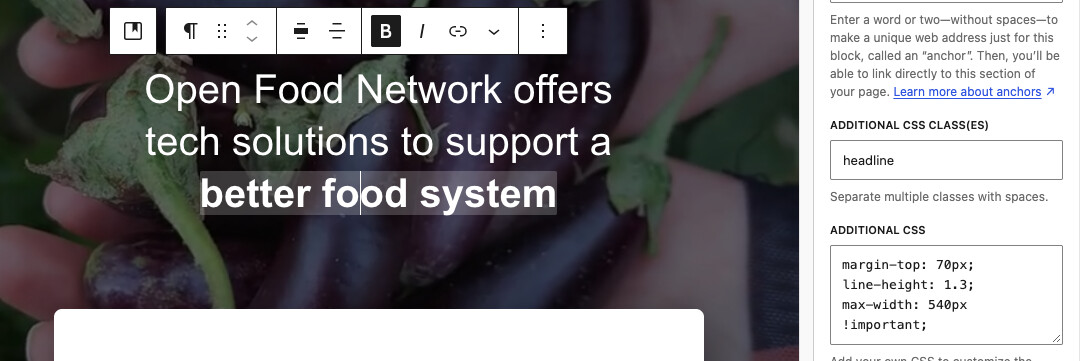
from the Links section in admin:
 <style>
@media screen and (max-width: 840px) {
  .headline {
    font-size: 35px !important;
}
</style>
Not ideal, but more than fine for a pilot overall.
If you have any questions, feel free to comment here. If you are interested in improving this super admin feature, this is the original github issue it was build from.
Thank you!